
Kingobd Sports Notifications: Match Alerts and Reminders Guide
Learn how Kingobd Sports notifications work, how to manage match alerts and reminders, fix missing alerts, and control notice settings on Android.
Blog
Put Kingobd Sports within one tap: home screen shortcuts, Android app shortcuts, quick tiles, and a match-day home screen layout that surfaces fixtures fast.
The fastest app is the one already on your home screen. Android gives you several ways to surface Kingobd Sports before a match instead of digging through the app drawer at kickoff.
This guide covers home-screen placement, long-press shortcuts, and a match-day layout that puts fixtures one tap away.
Setting the app itself up first? Start with the Kingobd Sports homepage.
Move the Kingobd Sports icon to your primary home screen, ideally in the thumb-friendly lower rows. On match days, that single placement decision saves more time than any other trick in this guide.
If you use folders, a small Sports folder with your schedule and scores apps beats one crowded screen of mixed icons.
Long-pressing an app icon on Android can reveal shortcuts into specific screens, depending on what the app offers. Where Kingobd Sports provides them, you can jump deeper than the dashboard in one gesture.
You can also drag a useful shortcut out of that long-press menu and pin it as its own home-screen icon on many launchers.
Ways to shorten the path to fixtures:
Build a simple match-day arrangement during big tournaments: calendar widget on top for converted kickoff times, Kingobd Sports beside it, and notifications unmuted.
Converted times matter, and Kingobd Sports Time Zone Guide: Read Kickoff Times Correctly shows how to get them right before you build a layout around them.
Widget support depends on the app version and your launcher. If a Kingobd Sports widget is offered in your widget picker, it can surface schedule information without opening the app at all.
If no widget appears, the app simply does not offer one on your setup; shortcuts and placement achieve nearly the same speed. Keep the app updated so new options arrive, following How to Update Kingobd Sports to the Latest Version whenever a new version lands.
Shortcuts break when an app is uninstalled or its data is cleared during troubleshooting. After any reinstall, re-pin your icons and re-check notification settings.
Troubleshooting side effects are explained in Kingobd Sports Not Working? Complete Troubleshooting Guide, which covers what a reinstall can reset.
Availability depends on your app version and launcher. Check the widget picker; if none is listed, use home-screen placement and long-press shortcuts instead.
Long-press the Kingobd Sports icon, and if shortcuts appear, drag the one you want onto the home screen (supported on many launchers).
Shortcuts can break after uninstalling, reinstalling, or clearing app data. Re-pin the icon after restoring the app.
A primary home-screen icon plus notifications for changes gets you to fixtures in one tap and keeps you from opening the app unnecessarily.
Widgets and shortcuts are small optimizations with a daily payoff: fixtures one tap away, every match day. Place the icon well, pin what the app offers, and keep it updated.
Complete the one-tap setup with alerts from Kingobd Sports Notifications: Match Alerts and Reminders Guide, so fixtures reach your home screen and your notifications together.
Learn how Kingobd Sports notifications work, how to manage match alerts and reminders, fix missing alerts, and control notice settings on Android.
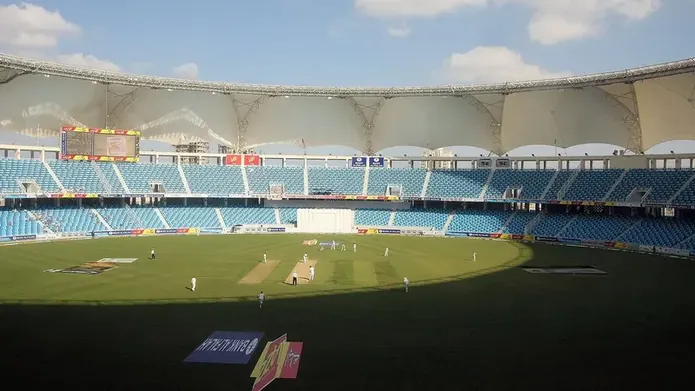
Follow cricket on Kingobd Sports: find fixtures, track tournaments, understand match timings, and keep up with international and league cricket schedules.
Understand Kingobd Sports data usage, what affects consumption, and practical tips to follow sports on limited mobile data without missing fixtures.