Kingobd Sports Notifications: Match Alerts and Reminders Guide
Learn how Kingobd Sports notifications work, how to manage match alerts and reminders, fix missing alerts, and control notice settings on Android.
Blog
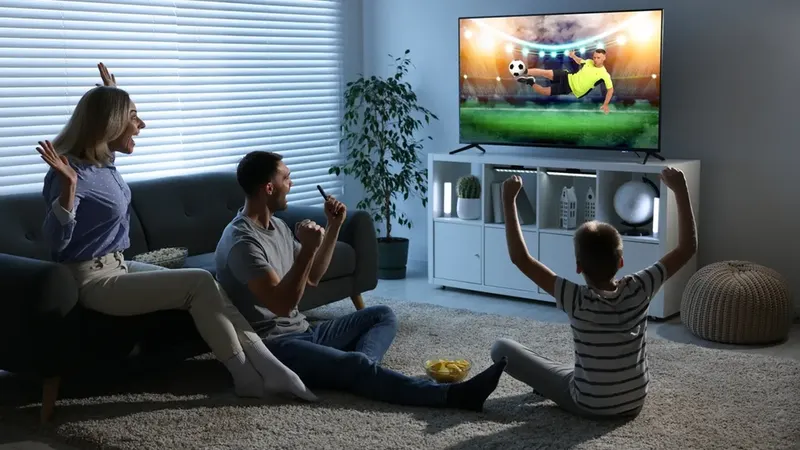
Learn how to mirror Kingobd Sports from Android to a TV using Chromecast and screen mirroring, plus fixes for lag, missing cast buttons, and poor quality.
Schedules and tournament brackets are easier to share on a big screen. If your phone is small but your living-room TV is not, casting or mirroring Kingobd Sports from Android takes a minute to set up.
This guide covers Chromecast casting, Android screen mirroring, and the fixes for the problems people hit most often.
For a permanent TV setup instead, begin with Kingobd Sports APK download.
Casting depends on both devices sharing one network. Your phone and the Chromecast or smart TV must be connected to the same Wi-Fi, and the TV input must be set to the Chromecast source.
You will need:
Screen mirroring shows everything on your phone, including Kingobd Sports, on the TV. Open Android's quick settings, tap Cast or Screen Cast, choose your TV, and then open the app.
Mirroring is the most flexible option because it works regardless of whether an individual screen has its own cast button. Rotate the phone to landscape for a fuller TV picture.
If the quick-settings cast option does not list your TV, open the Google Home app, select the Chromecast device, and choose Cast my screen. Once the TV mirrors your phone, switch to Kingobd Sports as normal.
Stop the cast from the same menu when you finish, so the TV returns to its home screen.
A missing TV in the device list almost always means the phone and TV are on different networks, including a guest network or a 2.4 GHz versus 5 GHz split that your router keeps separate. Reconnect both to the same band and try again.
Lag during mirroring points to a weak Wi-Fi signal. Move closer to the router, reduce other heavy downloads, and restart the Chromecast if the delay persists. For a dedicated setup, compare it with Kingobd Sports for Android TV: Installation and Usage Guide, which installs natively on the TV.
Casting is perfect for occasional big-screen viewing and for showing fixtures to friends. If you use the TV daily, installing the app directly on Android TV or Firestick is more convenient because no phone is tied up.
Our Firestick walkthrough, Kingobd Sports for Firestick: Complete Setup Guide, covers that route in full, from the Downloader app to first launch.
Your phone and TV are probably on different Wi-Fi networks or bands. Connect both to the same network, keep them close to the router, and reopen the cast menu.
Casting support depends on the screen and version. Android screen mirroring works in every case because it mirrors the whole phone display to the TV.
Mirroring delay comes from weak Wi-Fi. Move closer to the router, pause other heavy downloads, and restart the Chromecast if lag continues.
Many smart TVs support Android mirroring or their own cast standard. Check your TV's screen-mirroring input, or use an Android TV or Firestick setup instead.
With both devices on one network, casting Kingobd Sports takes under a minute and turns any TV into a fixtures board for the whole room. Mirror for flexibility, or install on the TV itself for everyday use.
You can compare the TV options in detail in Kingobd Sports vs Other Sports Apps: Which Is Better?, which weighs casting against a native TV install.
Learn how Kingobd Sports notifications work, how to manage match alerts and reminders, fix missing alerts, and control notice settings on Android.

Follow cricket on Kingobd Sports: find fixtures, track tournaments, understand match timings, and keep up with international and league cricket schedules.
Understand Kingobd Sports data usage, what affects consumption, and practical tips to follow sports on limited mobile data without missing fixtures.