
Kingobd Sports Notifications: Match Alerts and Reminders Guide
Learn how Kingobd Sports notifications work, how to manage match alerts and reminders, fix missing alerts, and control notice settings on Android.

Blog
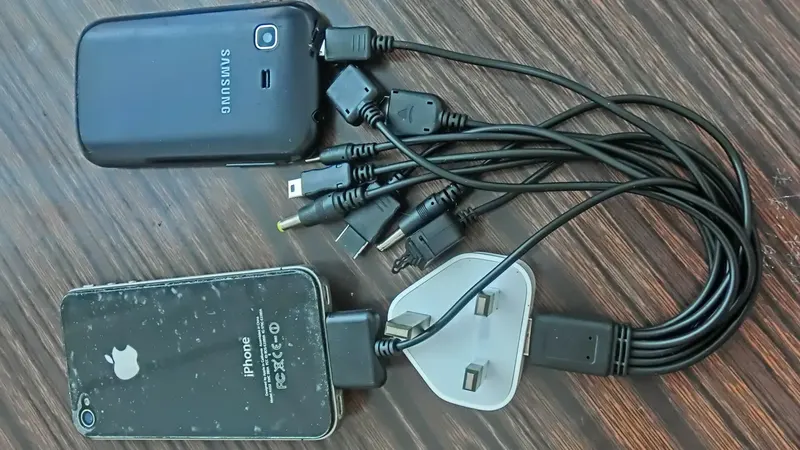
Reduce Kingobd Sports battery drain, fix delayed alerts caused by battery optimization, and balance background activity with all-day phone life.
Sports apps live in the background of your match day, checking schedules and delivering alerts. Done badly, that costs battery. Done well, Kingobd Sports sips power while never missing a kickoff.
This guide explains the two sides of the balance: stopping needless drain, and stopping Android from sleeping the app so hard that alerts arrive late. New to the app? Begin with Kingobd Sports for Android.
The screen is the biggest cost, not the app itself. Long sessions scrolling schedules at full brightness drain far more than background schedule checks.
Frequent manual refreshing on a weak signal also costs power, because the phone works harder to hold the connection. Let alerts come to you instead.
The main battery costs are:
Android and many phone brands aggressively sleep apps you do not open daily. That saves battery but delays Kingobd Sports alerts until you next unlock the phone.
If reminders arrive in a burst when you pick up the phone, battery optimization is the culprit. Exempt Kingobd Sports in Settings, under Apps, Battery, and choose Unrestricted.
Keep the app unrestricted only if you depend on its alerts. Use dark mode on OLED screens, lower brightness during long browsing sessions, and close the app fully when you do not need it for a few days.
Dark mode setup and display options are covered in Kingobd Sports Features, Settings and Streaming Quality Explained, alongside the other display settings worth changing.
Before blaming any single app, open Android's battery usage screen after a normal day. It ranks every app by actual consumption, and Kingobd Sports should sit far below browsers, video, and social apps.
If it ranks unusually high, update the app and restart the phone; a stuck background process is the usual explanation, and How to Update Kingobd Sports to the Latest Version gives the update steps in order.
Charge before the match window, enable alerts, and avoid needless refreshing. Your phone will comfortably outlast the day's fixtures with the app ready in the background.
Fans running the app on several devices can spread the load, as Using Kingobd Sports on Multiple Devices explains when you split fixtures across screens.
No. Its background work is light. Most drain comes from screen time and repeated refreshing, not from the app's schedule checks.
Battery optimization is sleeping the app. Set Kingobd Sports to Unrestricted under Android battery settings so alerts are delivered on time.
For a lightweight schedule app, the difference is small. The setting mainly guarantees timely alerts on match days.
Open Android Settings, then Battery, then Battery usage. Apps are ranked by real consumption for the period shown.
Battery happiness with Kingobd Sports is a balance: unrestricted enough to alert you on time, disciplined enough not to waste the screen. Set the exemption once, and match days take care of themselves.
Pair it with timely alerts by setting up Kingobd Sports Notifications: Match Alerts and Reminders Guide, so the fixtures you care about reach you first.
Learn how Kingobd Sports notifications work, how to manage match alerts and reminders, fix missing alerts, and control notice settings on Android.

Follow cricket on Kingobd Sports: find fixtures, track tournaments, understand match timings, and keep up with international and league cricket schedules.
Understand Kingobd Sports data usage, what affects consumption, and practical tips to follow sports on limited mobile data without missing fixtures.